AI Agent for ESF E-Invoices and the Taxpayer Cabinet: Invoices Reconciled with 1C, Taxes Under Control
An accountant in Kazakhstan has two government windows to check every day: the ESF system, where electronic invoices live, and the Taxpayer Cabinet, where personal accounts, notices and deadlines live. Both require a digital signature key to sign in, neither is connected to 1C, and everything in between is done by hand: accept incoming invoices, check the status of outgoing ones, reconcile with the books, see whether a debt or a desk-audit notice has appeared. The AI agent takes this routine: it signs in to the portals with the organization's key, reads, reconciles and hands the accountant a ready review. Accepting, declining, issuing and signing happen only after a person approves.
What the accountant does on the portals, and which parts the agent takes
Break the work with the ESF system and the Taxpayer Cabinet into events, and each one has someone who has to handle it:
| Event | Before | With the AI agent |
|---|---|---|
| An incoming e-invoice arrives | Sign in to ESF, open it, check the seller, amounts and VAT, accept | The agent sees the new invoice, checks it against the contract and the receipt in 1C and reports: everything matches, ready to accept, or where the discrepancy is |
| Status of an outgoing e-invoice | Check periodically whether the buyer accepted or declined it | The agent follows status changes and reports declined and revoked invoices with the reason |
| Reconciling ESF with 1C | Export the register, compare in a spreadsheet, hunt for missing ones | The agent matches e-invoices with 1C documents: what is missing from the books, what was issued without a basis, where the amounts differ |
| Issuing deadline | Remember the 15 days for every shipment | The agent counts the deadline from shipments in 1C and reminds in advance, while there is no penalty yet |
| Validation error after sending | Decode the error code on the portal | The agent reads the validation errors and explains what to fix in the document |
| Notice in the Taxpayer Cabinet | Notice it on the next visit and hope not to miss the response deadline | The agent reads notices, including desk-audit ones, and reports them with the deadline |
| Debt and personal account | Check before a payment order and before each reporting period | The agent opens the personal accounts and answers whether there is a debt or penalty, for which tax and how much |
Not a single line on the right removes the accountant. Each one removes a reason to open a portal "just to check".
ESF: through the official API, not through a browser window
The ESF system has an official API, and the agent works with it directly: a session opens with the organization's digital signature key and the ESF password, then the agent reads invoices for a period by direction, incoming and outgoing, with statuses, counterparties and amounts, opens any invoice in full with its status history and requests only what changed since last time. It is fast: a month's list arrives in seconds, not in the time it takes the portal to load.
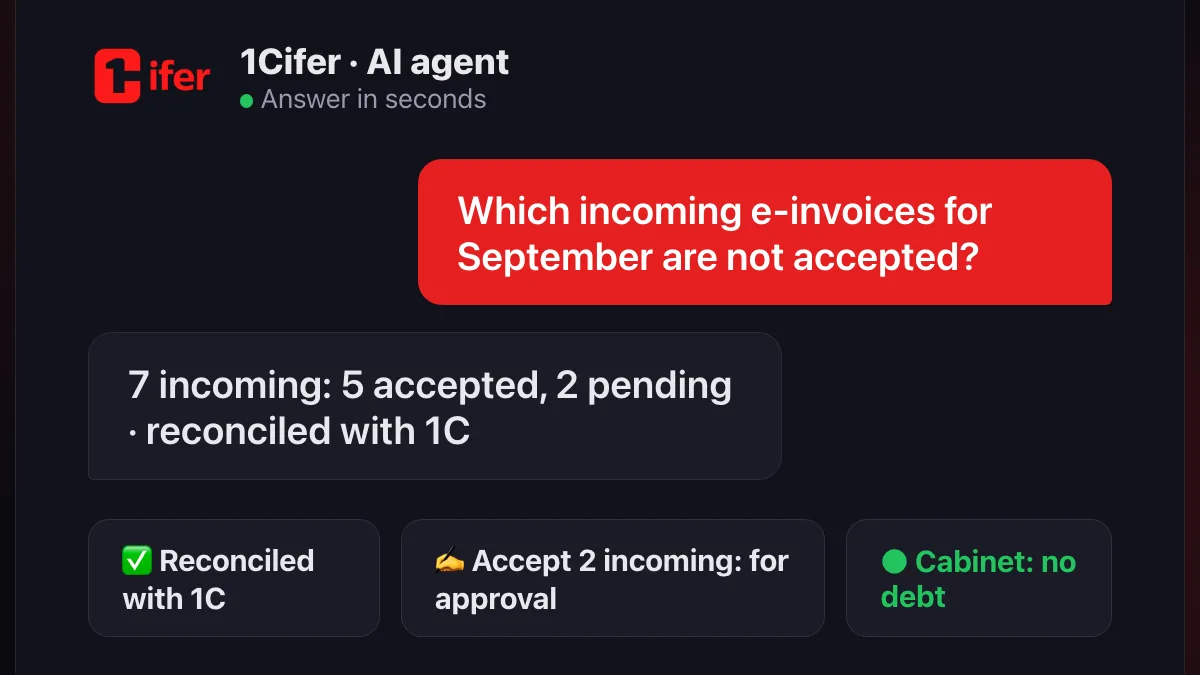
Ask in your own words: "Which incoming e-invoices for September are still not accepted?", "Did anyone decline our invoices this week, and why?", "How much did we issue to Alatau LLP this quarter?" The agent answers from ESF data, and if the organization has several enterprises in its profile, it asks which BIN you mean.
The agent can also change statuses, but every change goes through a person. Accept an incoming invoice, decline it with a reason, revoke your own outgoing one, delete a draft with an error, issue a new e-invoice: the agent prepares the operation, shows exactly what will change and waits for your "yes". Before issuing, it shows the whole document as it will go to the portal. It signs with the organization's key only after approval, and only if you have enabled the right to sign documents for that organization. Without that right the agent reads and reminds, but signs nothing.
Reconciliation with 1C
The most expensive e-invoice error is not technical but accounting: the invoice exists on the portal but not in 1C, or the shipment is posted but no invoice was issued. The agent sees both sides. It matches e-invoices from the ESF system with 1C documents by counterparty, date, number and amount and returns a short list of discrepancies: issued but not reflected in the books; reflected but not issued; amounts differ; incoming accepted but no receipt. The reconciliation is incremental: the agent remembers where it stopped and looks only at what is new next time.
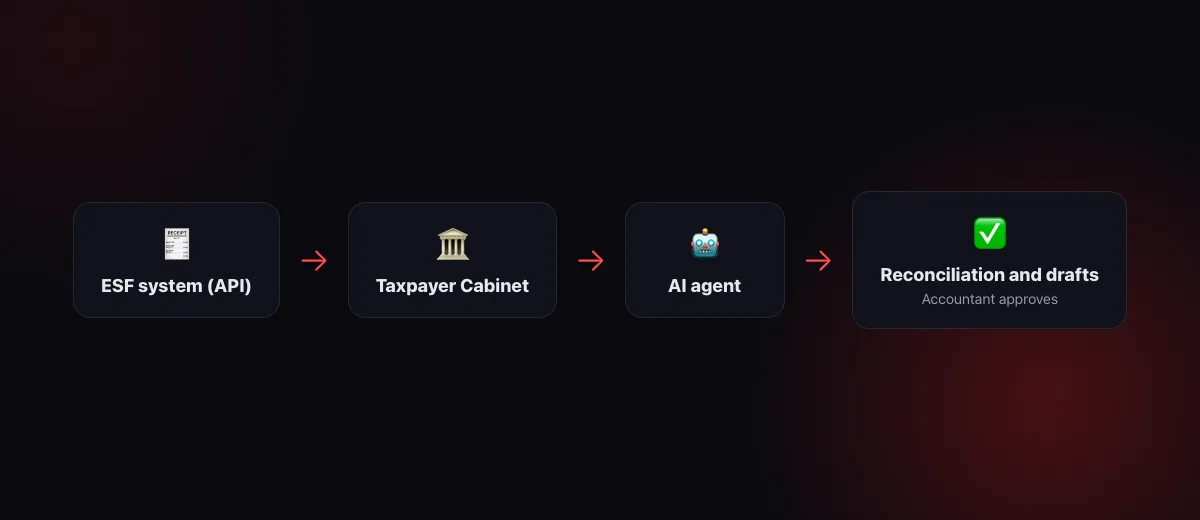
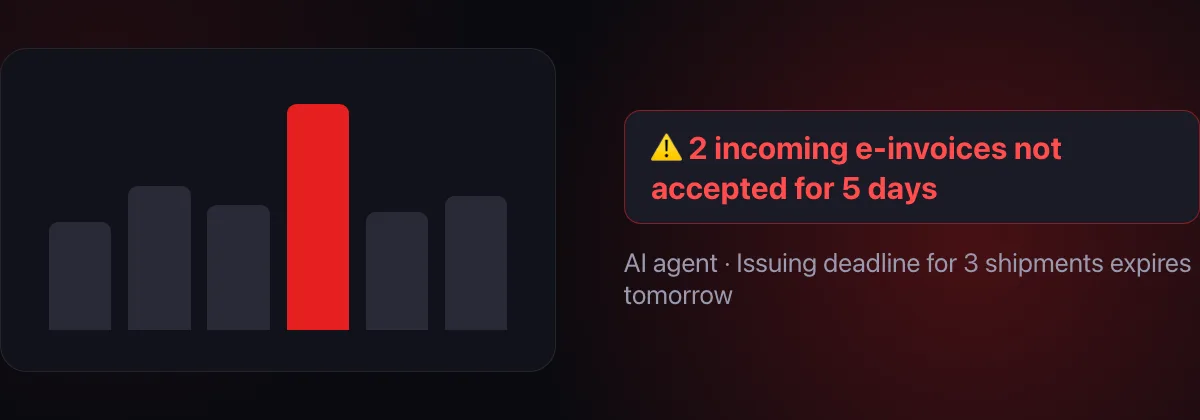
The agent counts the issuing deadline from shipments in 1C: as a general rule an e-invoice has 15 calendar days, and the reminder comes in advance, not on the day when it is already too late. How the agent works with bank statements, source documents and deadlines inside 1C itself is covered in the article "AI accountant".
The Taxpayer Cabinet
The Taxpayer Cabinet has no public API, so the agent works in it the way an accountant does: through 1Cifer Hub on a company computer it opens the cabinet, signs in with the organization's digital signature key and reads the sections it needs. Personal accounts by tax and payment, balance and debt, penalties, notices and demands, statuses of submitted forms. You ask: "Do we have a VAT debt?", "Which notices came this week?", "Has form 300.00 for the quarter gone through?" The agent opens the right page, reads it and answers with figures and dates, not a retelling.
Signing in to the Taxpayer Cabinet without a key goes through Digital ID and an SMS code, so for this portal the organization needs a digital signature key. With the key the agent signs in by itself, in a few seconds and with no person involved.
The signature key stays with you
The organization's key lives on the computer where 1Cifer Hub is installed and never leaves it: not to the 1Cifer cloud, not to the language model. Signatures for sign-in and for documents are made on that same computer; only the result goes to the cloud. In Hub the key is kept in the plugin's data, and portal passwords are sent neither to the cloud nor back to the interface. Each organization has its own key, its own passwords, its own browser profile and its own rights: a holding with several legal entities connects each one separately, and the company's agent sees only the organizations linked to it.
The same "Government portals of Kazakhstan" plugin can sign in to egov.kz, the public procurement portal and the court cabinet, and reads their sections the same way as the Taxpayer Cabinet.
What the agent does not do without approval
- It does not accept or decline invoices on its own. Every ESF status operation is shown to the accountant and waits for a "yes". Declined, and nothing changed on the portal.
- It does not issue or sign. Issuing an e-invoice goes through approval and only for an organization where you enabled the right to sign documents. Before sending, the agent shows the whole document.
- It does not take the key anywhere. The digital signature key and portal passwords stay on the computer with 1Cifer Hub, and the signature is made there.
- It does not exceed the organization's rights. The agent sees in the ESF system and the Taxpayer Cabinet exactly what the key owner sees, and only for the organizations linked to the company.
This is the same control structure as in the other 1Cifer modules: more in the article about AI agents.
Where to start
- Install 1Cifer Hub on the accounting department's computer and add the "Government portals of Kazakhstan" plugin from the plugin store. It is official and free.
- Add the organization. BIN, the digital signature key file, the ESF password, which portals to enable. Hub checks the BIN against the key certificate and verifies the sign-in with one button.
- Ask the agent. "Which incoming e-invoices are not accepted?" and "Do we have a debt?" work on the first day; reconciliation with 1C switches on once the database is connected.
- Enable the signing right when you are ready. Then the agent can accept, decline and issue e-invoices, still with your approval for every operation.
FAQ
Does the organization need a digital signature key?
For the ESF system and the Taxpayer Cabinet, yes: both portals are entered with the organization's key, and ESF additionally needs the ESF password. On the plugin's other portals a phone sign-in by QR code is possible, but ESF and the Taxpayer Cabinet will not open without a key.
Where is the key stored and who can see it?
On the computer where 1Cifer Hub is installed, in the plugin's data. The signature is made on that computer; the key goes neither to the 1Cifer cloud nor to the language model. Portal passwords do not leave the computer either.
Can the agent accept or issue an invoice by itself?
Only after your approval, and only if the right to sign documents is enabled for the organization. Reading, reconciliation and reminders work without that right.
Is 1C required?
No. Reading the ESF system and the Taxpayer Cabinet works on its own. With 1C connected you also get reconciliation of invoices with the books and issuing deadlines calculated from shipments.
Read next: AI accountant: a new level of accounting quality · AI HR agent: hiring with hh.ru and enbek.kz · What is an AI agent — in plain words
Let invoices reconcile themselves
1Cifer Hub connects the ESF system through the official API and the Taxpayer Cabinet with your organization's key. Invoices, reconciliation with 1C, debts and notices in one window, while the signature stays with you.
Request trial access